
How can I add waypoints to my trip?
Last updated October 19, 2026
Waypoints are the places you visit on your trip. In the Web App, you add them centrally via the itinerary.
1. Open the itinerary
Open your trip and click Itinerary in the left navigation bar. The combined map and stops view opens.
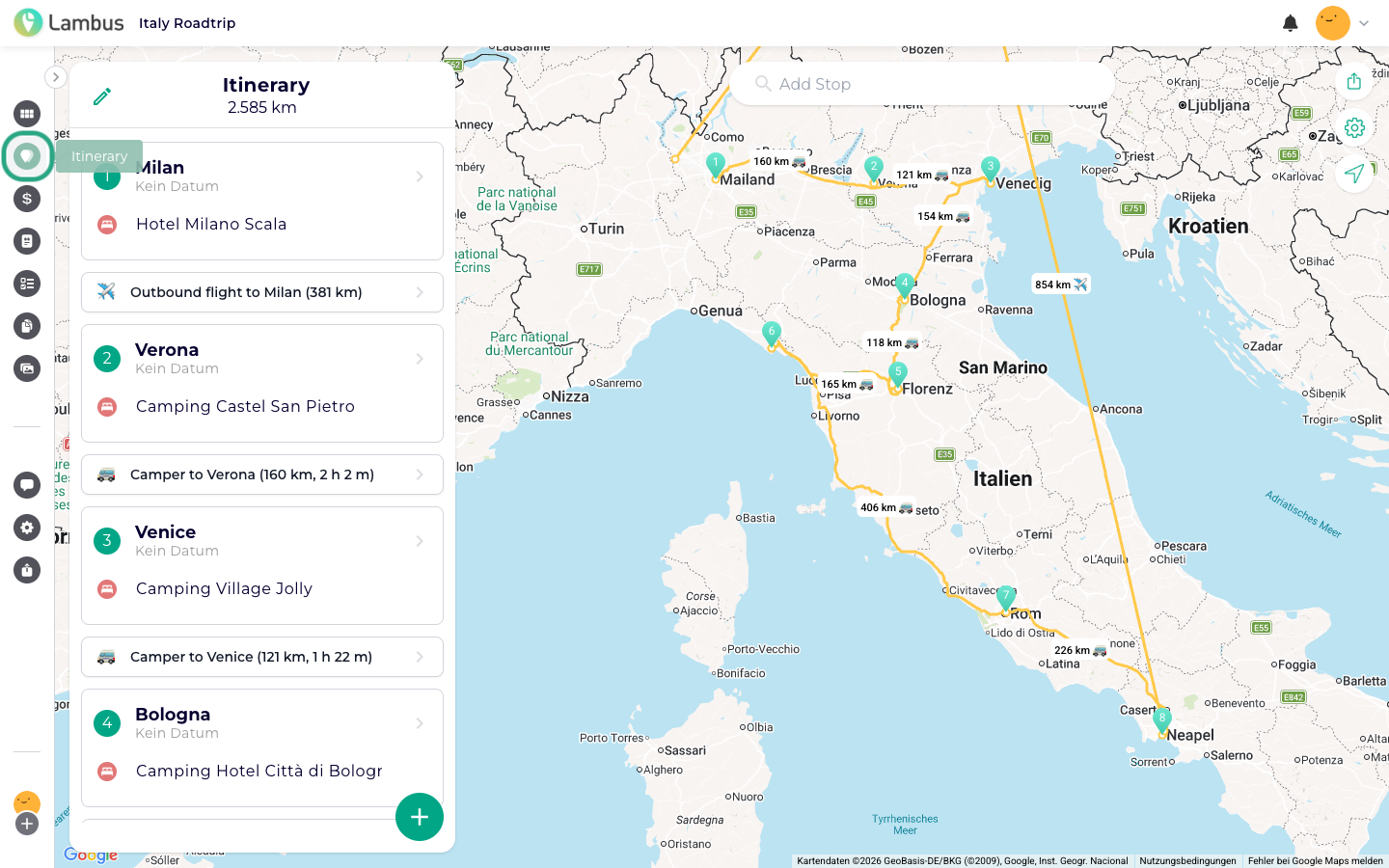
2. Add waypoint via search
Click into the Add stop search field and enter a location, e.g. a city, a sight, an address or an airport. Matching suggestions appear as you type.
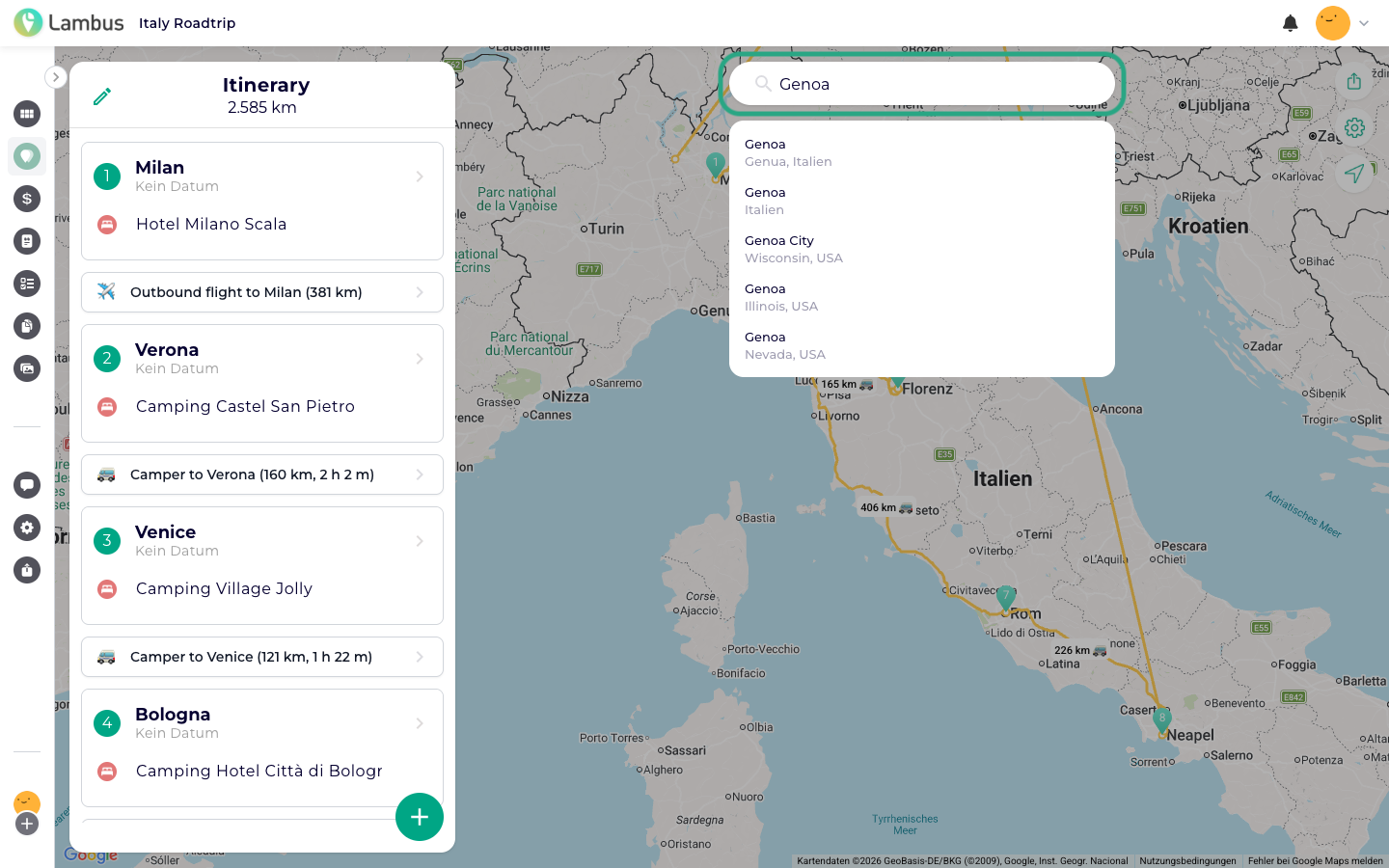
Pick the matching entry from the list. The waypoint is added to the trip and shown on the map immediately.
3. Add waypoint directly on the map
Alternatively, hold and drag on the map to zoom into a location, then click to set a waypoint. In the dialog that opens, you can adjust the name, pick a date and confirm the waypoint.
4. Reorder & adjust dates
In the list on the left side, you can reorder waypoints via drag & drop or edit their dates (arrival / departure). The map updates automatically and shows the route.